

User manual
For people submitting events and members who publish, confirm information, and look after places.
For everyone
The guide
We Keep Comporta is an editorial events guide. We publish listings from public sources, organisers, and members managing verified places, with community review or admin supervision according to origin. We do not sell tickets, process payments, or act as a party to any transaction — ticket links always go to the seller.
This manual explains how to submit, review, and correct information. It does not replace the terms, privacy notice, or formal listing-report route.
For everyone
How an event reaches the guide
- The public form and ingested sources enter the queue.
- Two independent members, or one admin, may decide.
- A member may publish directly only for a verified place they manage.
- Legal checks must always be clear; the admin receives every state change.
Normal community quorum is 2; an admin decision does not need that quorum.
For everyone
Languages
The site and this manual are available in Portuguese and English. The public submission form remains in Portuguese, so its field labels appear here exactly as they do on screen.
A · Submit an event
Submit an event
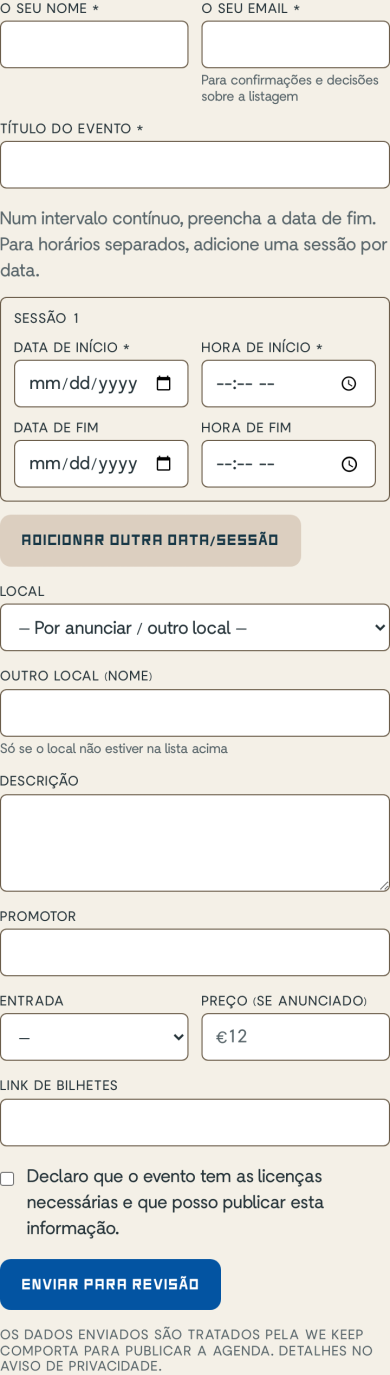
- Sender identity and contact.
- Add one continuous interval or several sessions with their own dates.
- The button sends for review; it does not publish directly.
- O seu nome * — Tell us who is sending the information.
- Título do evento * — Enter the event's public title.
- Data de início * — Add the start date and time; include the end date and time when applicable.
- Adicionar outra data/sessão — Add one session per date when the event has separate times.
- Local — Choose the place or leave it to be announced.
- Enviar para revisão — Send it to the review queue.
A · Submit an event
What the fields mean
- Title, start date, and start time identify the event; required fields carry an asterisk.
- For one continuous multi-day event, use a session with different start and end dates. For separate sessions or performances, add one session per date.
- Place can be an existing location or “To be announced”. Do not guess an address.
- Use an exact price only when a source or ticket states it.
- Promoter and age rating can be completed by the team, but must exist before publication.
A · Submit an event
After submitting
You receive a reference. The event remains queued until it has two confirmations, one when it starts within 48 hours, or an admin decision. We email when a decision needs your attention.
A · Submit an event
Rejection reasons and appeal
| Reason or check |
|---|
| Not happening / cancelled |
| Wrong details (date, time or place) |
| Duplicate |
| Outside the coverage area |
| Not a public event |
| Illegal or prohibited content |
The decision identifies the reason. If you disagree, reply to the email or use the appeal route; the team will review the facts again.
A · Submit an event
Limits and photographs
The form accepts up to 10 submissions per network address in 24 hours. Place photographs accept JPEG, PNG, or WebP up to 8 MB.
B · Publish, review and manage
Sign in as a member
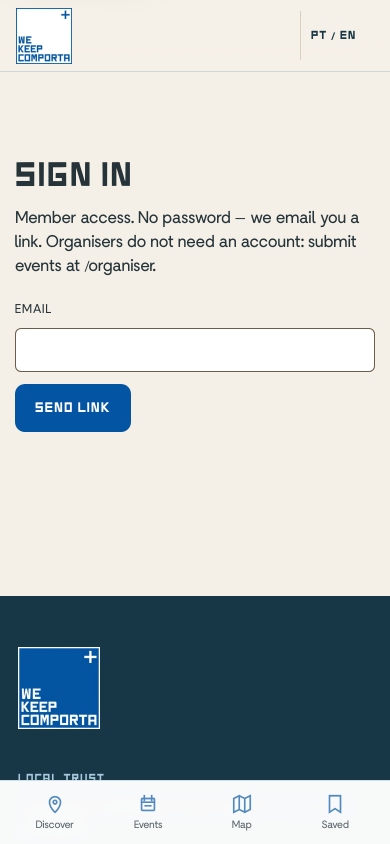
- Use the email associated with the invitation.
- Send the request; the code arrives by email.
- Open the sign-in page and enter the invited email address.
- Use the six-digit code or the button in the email.
- If the code fails, return to the same tab, confirm the email, and request a new code.
B · Publish, review and manage
Add an event to your place
- In the member console, open “My events” and choose “Create event”. The selector lists the verified places you manage.
- Complete the PT and EN titles, dates, category, promoter, age rating, entry, and licence declaration. Descriptions are optional, but PT and EN must be supplied together.
- If every check passes, the event publishes immediately and you receive its link. The admin is notified.
- If a mandatory authorization is missing, the event is held for review and the page shows the blocks. The admin may publish after clearing them or reject with a reason.
- Event repeated on several days: use “Add another date” and create one session for each date.
- Continuous event running past midnight or lasting several days: enter the end day and time in the same session.
- All sessions remain together on one event page; do not create a separate event for each day.
Each event accepts up to 20 sessions.
Daily limit: 10 member events.
B · Publish, review and manage
Manage your events
- “Existing events” gathers entries created by your account, including published, in review, cancelled, and closed events.
- Use “Edit” to change titles, descriptions, dates, tickets, category, promoter, age rating, or entry.
- “Cancel event” cancels every session without deleting the record. “Restore event” brings them back.
- Every change rechecks that the place remains verified and linked to your account; the admin receives an action record.
B · Publish, review and manage
Admin: verify places
- Open the Admin dashboard and find the place by name or with the “Unverified” filter.
- Use “Verify place” directly on the card. The change is recorded with the admin, previous value, and time.
- If needed, “Remove verification” reverses the state. A member can publish directly only while the place is verified.
B · Publish, review and manage
Review an event
- Confirm only what you can verify from the source, the place, or direct knowledge.
- Approve records a confirmation; reject requires a reason and never removes an event by itself.
- A daily limit protects the queue from bulk decisions.
Daily limit: 20 reviews.
B · Publish, review and manage
Conflicts and recusals
You cannot vote on a public entry you submitted, a place you manage, or a place you are affiliated with. Events you publish directly for your place do not count as community votes and remain subject to admin supervision.
B · Publish, review and manage
When the vote records but does not publish
Your vote can complete quorum while publication remains on hold. The vote did not fail: the team needs to resolve one of these checks.
| Reason or check |
|---|
| The place sits in a nature reserve: it needs ICNF authorisation before publishing. |
| Beach event with amplified sound: the Maritime Authority check is still missing. |
| The copy describes a beach or its access as “private” — that is not allowed. |
| The promoter's name is missing — required by law, even for free events. |
| The age rating is missing — required by law, even for free events. |
| No venue or place is set — without one, the council rules cannot be applied. |
| The submission is missing the organiser's licensing declaration. |
B · Publish, review and manage
Claim and edit places
- Claim only places you represent; the team approves the relationship.
- After approval, ordinary edits apply directly.
- Address notes and wording that may imply a private beach remain queued for the team.
Per day: up to 5 claims and 3 new places.
B · Publish, review and manage
Place photographs
Upload an accurate photograph of the place in JPEG, PNG, or WebP. The main photograph appears on the map and place pages; confirm that you have permission to use it.
C · Reference
Glossary
- Confirmation: an eligible member's vote in support of the presented facts.
- Quorum: the number of confirmations required to publish.
- Fast lane: publication with one confirmation when fewer than 48 hours remain.
- Verified place: a place confirmed by two members; its manager may publish there directly, subject to legal checks and admin supervision.
- Admin decision: an individual, recorded approval or rejection that does not require community quorum.
C · Reference
Manual versions
The page, Markdown files, shareable HTML, and in-product hints derive from the same content structure. The website version is the current reference.